

Health Check VMware vSphere, Enhanced Linked Mode (ELM)
Performing a health check on VMware vSphere with Enhanced Linked Mode (ELM) involves validating the operational status and integration of your vCenter Servers that are part of the same Single Sign-On (SSO) domain.
Here’s a step-by-step health check for a vSphere environment using Enhanced Linked Mode:
Option 1: Verify Linked Mode
Ensure that your vCenter Servers are part of the same SSO domain:
Login to vSphere Client (HTML5)
Go to Administration > System Configuration > Nodes
Check the list of vCenter servers; they should show under the same SSO Domain (e.g., Latosa.co.nz)

Option 2: Check for Replication Partners
SSH into the vCenter Appliance and run: /usr/lib/vmware-vmdir/bin/vdcrepadmin -f showservers -h localhost -u administrator -w 'your_password'
This shows replication partners. Each vCenter should appear as a replication partner of others in the domain.

Note: The expected output should be “Partners is 0 change behind” on both vCenter Servers
Option 3:
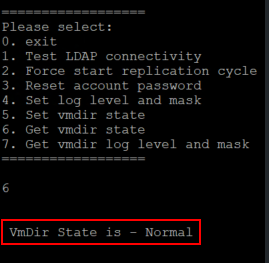
SSH into the vCenter Appliance and run: /usr/lib/vmware-vmdir/bin/vdcadmintool
Select Option 6
The VmDir State should be Normal
Option 4: SSO & PSC Health
Even though PSC (Platform Services Controller) is now embedded, the services still run and should be healthy.
Check service status: service-control --status
Look for:
vmware-stsd (STS Service)
vmware-vmdir (Directory Service)
vmware-sso (Single Sign-On)
Note: All should be running.
Reference VMware KB: Search - Support Portal - Broadcom support portal

Comments